Power Automate for WPForms v3.0 adds WPForms Lite support!

Hello friends! Power Automate for WPForms 3.0.2 is out, and it’s the biggest update this plugin has had since we launched it. The last version most of you installed was 2.0.1, so this post covers everything that shipped in 3.0.0, 3.0.1 and 3.0.2.
Here’s the short version:
- ✅ WPForms Lite is supported. You no longer need WPForms Pro to send form submissions to Power Automate.
- ✅ Choice fields send their values, not the label. Use numeric values and you can map a Dropdown straight into a Dataverse choice column.
- ✅ Numbers arrive as numbers and lists arrive as lists. Power Automate is picky about types, we are now enforcing types to match.
- 🔒 A security fix. If you only update one plugin this week, make it this one!
WPForms Lite users, Welcome to Power Automate!
This is the change we’ve been asked about most, and it’s the reason this is version 3.0 and not 2.1.
Until now, the plugin waited for WPForms Pro to save an entry, then read that entry back and sent it to Power Automate. That works fine right up until there’s no entry to read. WPForms Lite doesn’t store entries, so on a WPForms Lite site nothing ever reached your flow.
Version 3.0 now builds the entry from the submission itself. When someone submits a form on a Lite site, the plugin takes the submitted fields, formats them the same way it formats a saved entry, and sends them to every flow connected to that form. Your flow doesn’t know the difference, and it doesn’t need to.
There’s a bonus fix in here for WPForms Pro users, too. If you ever turned off entry storage on a form (a common choice for forms that collect information you’d rather not keep on your web server), those submissions were quietly skipped. They’re sent now.
I think that second part is the more interesting change. A form that never stores entries in WordPress and sends everything to SharePoint, Dataverse or Dynamics 365 instead keeps your business data where your business actually lives. Your website collects it. Your other systems keep it.
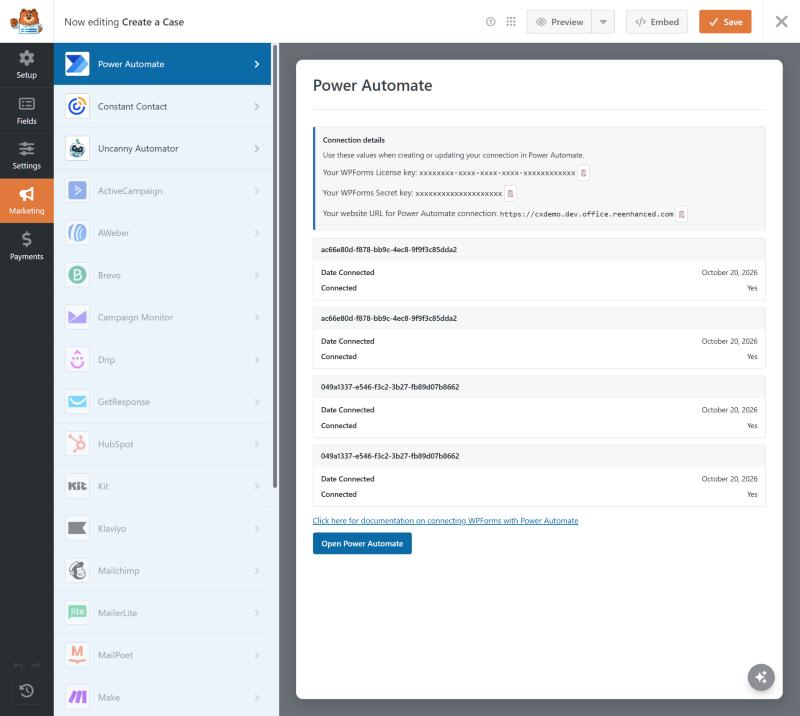
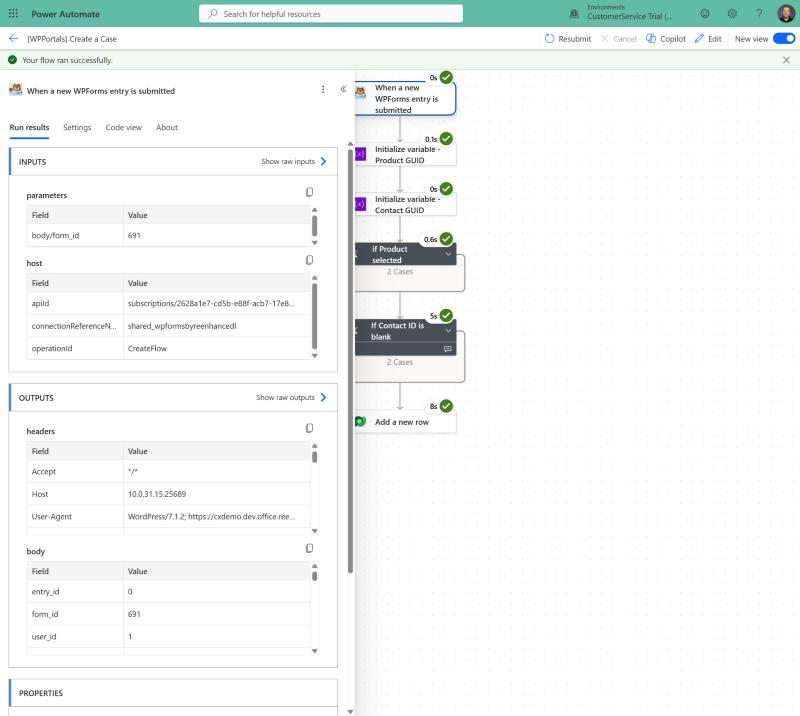
What still needs WPForms Pro?
A few features work by reading saved entries, and on a Lite site there’s nothing saved to read. These still need WPForms Pro with entry storage turned on:
- Reprocessing a flow from the entry details screen
- Power Automate activity in the entry log
- Reading past entries from inside a flow with the Get WPForms entries action
Simply put: if WPForms doesn’t save it, we can’t replay it later. Everything else works the same on Lite and Pro.
🔢 Choice fields you can map straight into Dataverse
Here’s a problem that’s easy to run into.
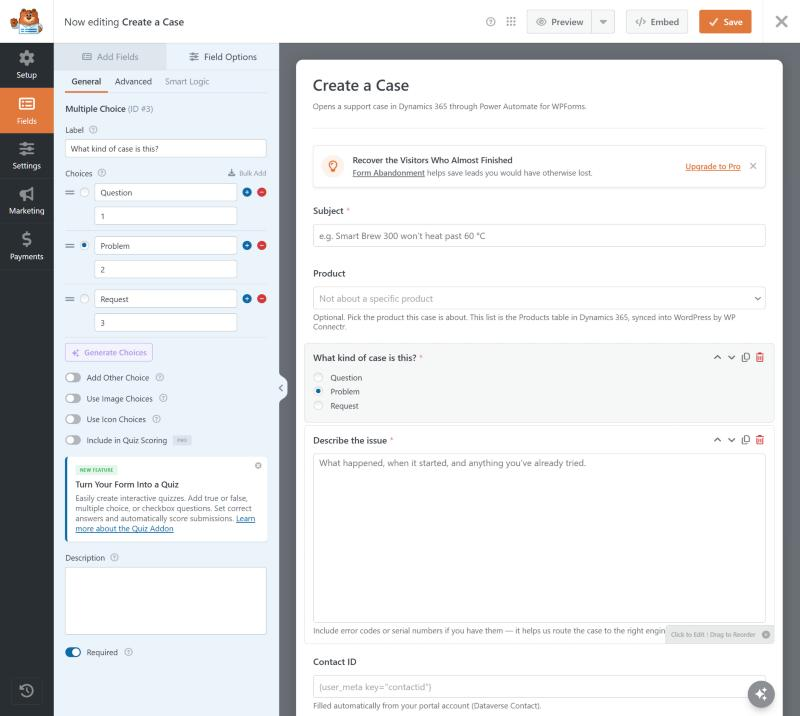
Say you have a Dropdown called “Reason for Contact” with three choices: Question, Problem and Feedback. In Dataverse you have a choice column with the same three options. But Dataverse doesn’t store a choice by its label. It stores a number, and usually a long one like 100000001.
WPForms has a setting for exactly this. Turn on Show Values for a field and you can give each choice a stored value that’s different from the label your visitors see. But before 3.0, the plugin only gave your flow the label. Map “Problem” into a choice column and Dataverse tells you, politely but firmly, that "Problem" does not have the expected format 'Integer/int32'.
Version 3.0 adds a second token for every Dropdown, Multiple Choice and Checkboxes field. In the dynamic content list, look for the field name followed by (value):
- Reason for Contact still gives you the label, such as “Problem”.
- Reason for Contact (value) gives you the stored value, such as 100000001.
If every stored value on the field is a whole number, the (value) token is sent as a number. It drops straight into a Dataverse choice column without wrapping it in an int() expression. (An expression I’ve typed more times than I’d like to admit.)
Here’s how to set it up:
- Make the Show Values option visible. WPForms hides it by default. Add this one line with a snippet plugin like WPCode, or in your theme’s
functions.php:
add_filter( 'wpforms_fields_show_options_setting', '__return_true' );- Set your values. Open the field in the form builder, turn on Show Values, and give each choice the matching option value from your Dataverse choice column.
- Map the (value) token. Open your flow in the designer and map Reason for Contact (value) into the choice column.
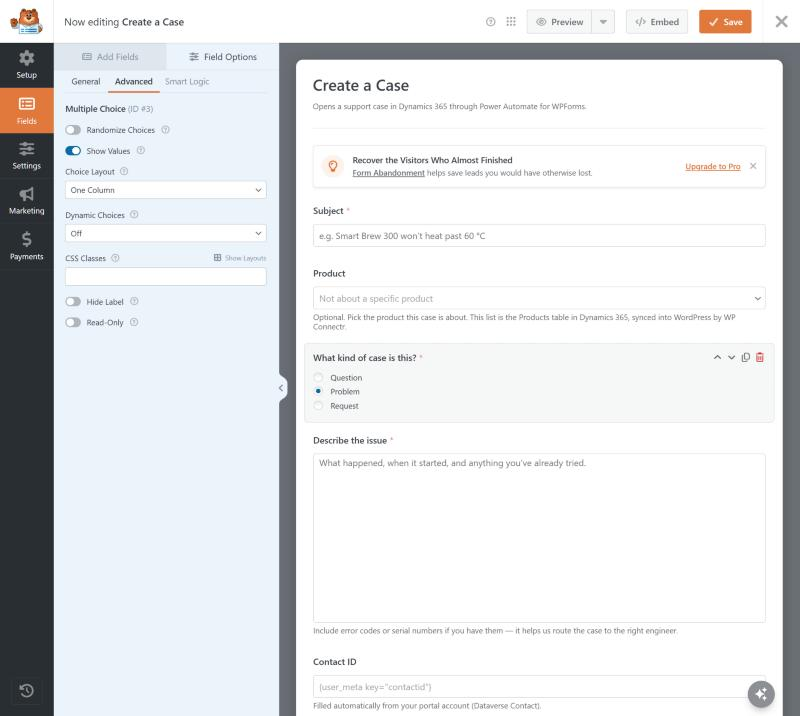
A few more details for the curious:
- Checkboxes and multiple-select Dropdowns: the (value) token gives you the stored values, one per line.
- Dynamic choices (choices populated from posts or taxonomies): the (value) token is the post or term ID, which is handy if your flow needs to look something up back in WordPress.
- If Show Values is turned off: the (value) token gives you the label, same as the regular token.
🧮 Numbers arrive as numbers, lists arrive as lists
I’ll be honest about how this one happened. In 3.0.0, we started telling Power Automate that a choice field’s stored value would be a whole number. Then we sent it as text, because that’s how WPForms stores it. Power Automate checks every trigger against what it was promised, so flows using those fields failed with an error like this one:
The API operation 'CreateFlow' requires the property 'body/fields/3/value_raw' to be of type 'Integer' but is of type 'String'.Version 3.0.1 fixed that, and while we were in there we fixed it for every field type. Each value is now sent as the type the trigger says it will be:
- Numbers for Rating, Number Slider and Payment Total fields. Payment Total sends the amount as a number instead of the currency-formatted text.
- Lists for File Upload fields that accept multiple files, and for Checkbox Items fields.
- Nothing at all for an empty number field, instead of an empty piece of text that breaks your math.
The connector’s entry actions use the same types, so a flow that reads past entries gets data in the same shape as a flow triggered by a new submission.
Remember that NEWLINE variable? Delete it.
If you followed our post on how to access file uploads in WPForms with Power Automate, you built a NEWLINE variable and a split() expression to turn multiple file uploads into a list. You don’t need them anymore. A multi-file upload field is now a list of file URLs, so you can put it straight into an Apply to each.
Heads up: this also means a flow built from that post needs a small change. split() expects text, and it will fail when it receives a list. Remove the split and point your Apply to each at the file upload field directly. The same goes for any flow that splits a Checkbox Items field.
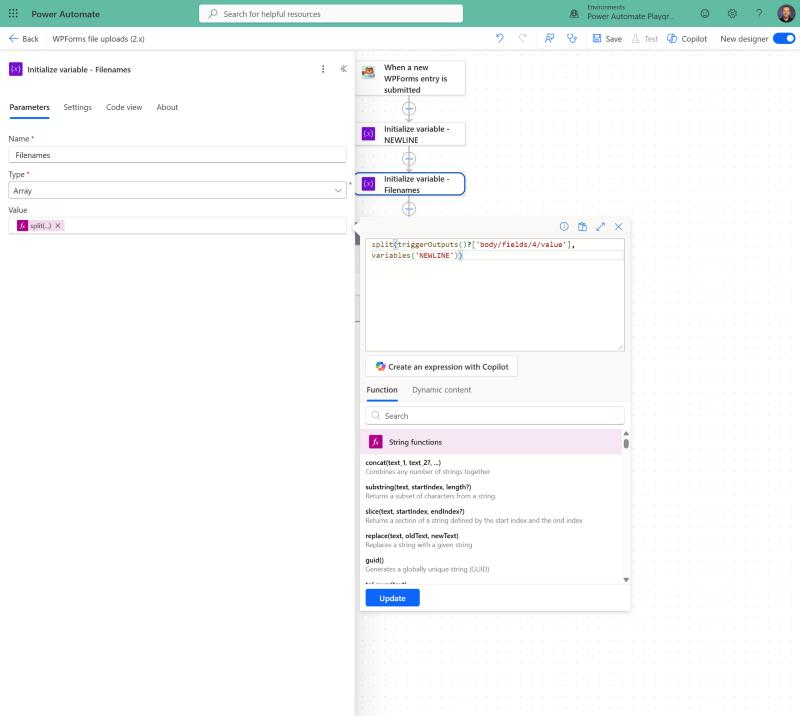
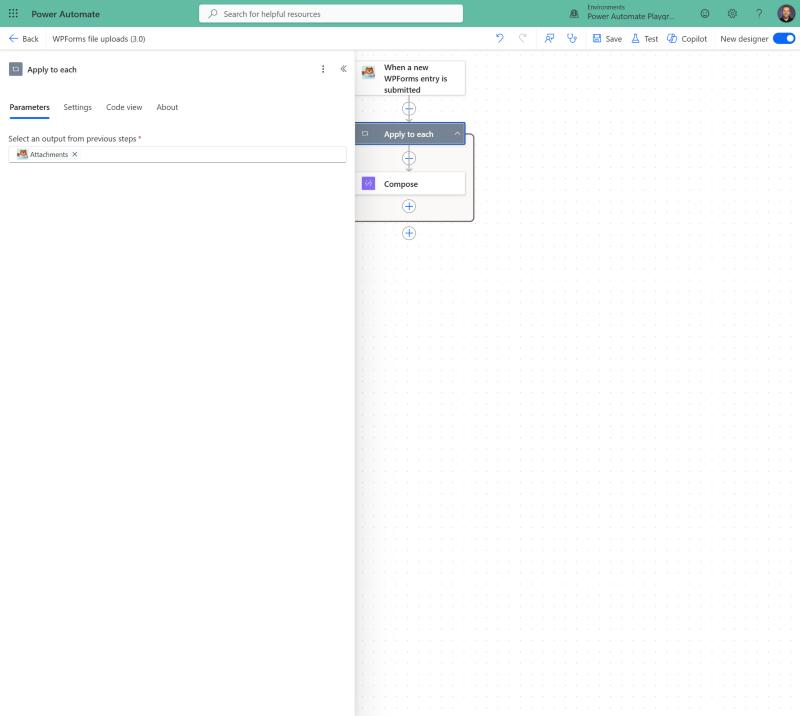
🔒 A security fix you should install today
This is the fix in 3.0.2, and I want to be direct about it.
The plugin checks every request from Power Automate against your site’s secret key and license key. In versions before 3.0.2, if the secret key saved on your site was blank, a request that also sent a blank secret key passed that check and was treated as your flow access user. The license key check had the same flaw.
How does a secret key end up blank? Most often after a site migration or a settings export and import. (Exactly the kind of thing that happens on a Friday afternoon and nobody thinks about again.)
Version 3.0.2 refuses every Power Automate request while either key is blank. It also compares both keys in constant time, so the comparison itself gives nothing away. (That’s the nerdy part. You don’t need to do anything about it.)
Here’s what to do:
- Update to 3.0.2.
- Run one of your flows to confirm it still connects.
- Check your flow access user. Under WPForms » Settings » Integrations, make sure Power Automate signs in as a user with only the permissions your flows need. That’s good advice regardless of this fix.
One small cleanup also made it into 3.0.2. The form builder was requesting two files the plugin hasn’t shipped since 2023. If you noticed two 404 errors in your browser console while building a form, they’re gone.
Coming from 1.x? Here’s what 2.0 brought
If it’s been a while since you updated, version 2.0 added a few things worth knowing about:
- A flow access user. Choose which WordPress user Power Automate signs in as.
- Reprocess flows from the entry details screen. Resend a saved entry to a flow instead of filling out your form for the fifteenth time while you build. (WPForms Pro)
- Power Automate details in the entry log. See the request for each flow an entry was sent to, plus a record whenever a flow reads the entry. (WPForms Pro)
- Entry permissions that match WPForms. Flows can only read entries the flow access user is allowed to see.
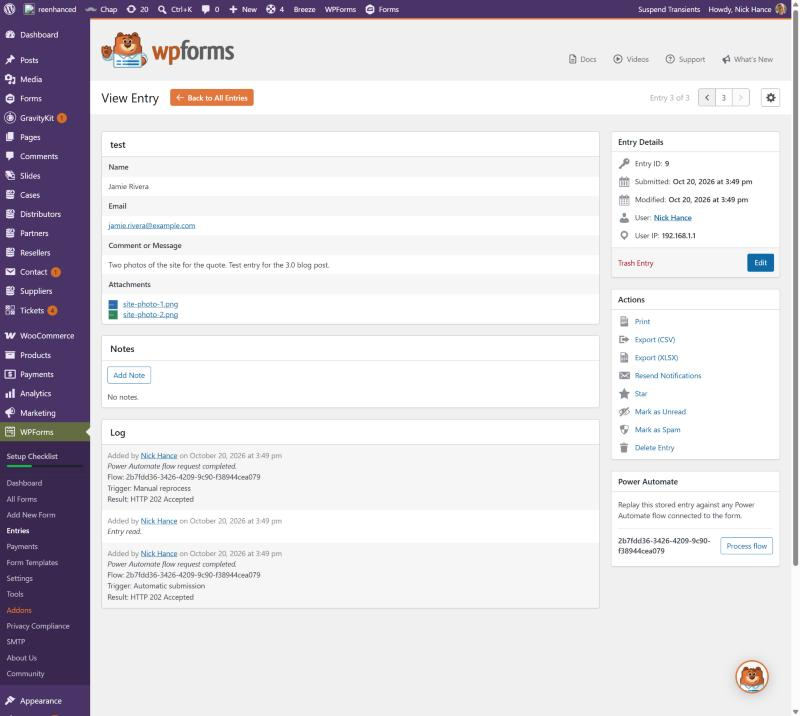
How do I update?
The update is waiting on the Plugins page in your WordPress admin. You can also download it from your account on reenhanced.com.
Once you’ve updated, open your flows in the designer to see the new (value) tokens. Your existing tokens work the same as before. If you’re new to the plugin, our getting started guide walks you through setup.
What is Power Automate for WPForms?
Power Automate for WPForms is the quickest and easiest way to connect your WPForms forms to Microsoft Power Automate. Every form submission can start a flow, and that flow can reach more than 1,500 services without writing a single line of code:
- ✅ Create leads and contacts in Dynamics 365 or Dataverse
- ✅ Save file uploads to SharePoint or OneDrive
- ✅ Post new submissions to a Microsoft Teams channel
- ✅ Add rows to an Excel Online spreadsheet
- ✅ Start an approval before anything else happens
And now it works whether you run WPForms Lite or WPForms Pro.
Already a customer? Log in to your account to download the latest version. Questions? Email us at support@reenhanced.com.
Happy automating!
Power Automate for WPForms requires an active license and WPForms Lite or WPForms Pro. Compatible with WordPress 4.7+ (tested up to 6.9) and PHP 7.2+.